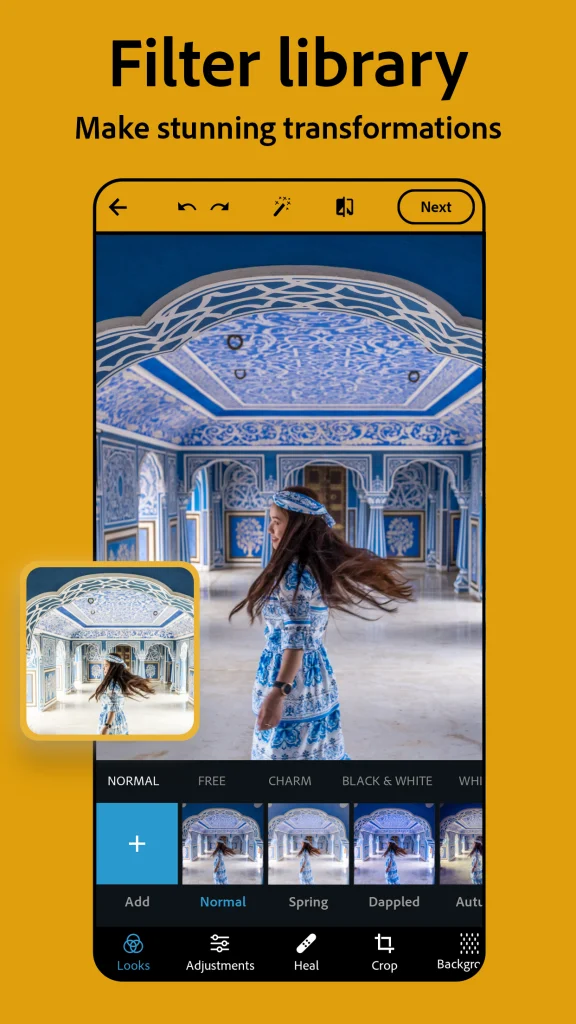
Editing a photo often involves more than applying a filter or adjusting brightness. You might want to remove an unwanted object, change the background, add something new or combine several pictures into one creative design. The Photoshop Mobile APK brings these editing possibilities to mobile devices, combining traditional Photoshop tools with artificial intelligence to make complex image edits easier.
Developed by Adobe, the app is designed for beginners, content creators, photographers and anyone who wants greater control over their pictures. Its AI Assistant adds another layer of convenience by allowing users to describe their editing ideas and receive suggestions or guided help while working on an image.
Turn Simple Photos into Creative Designs with AI
The main attraction of Photoshop with AI Assistant is the combination of manual editing and AI-powered features. Instead of relying entirely on complicated editing steps, users can describe the changes they want and let the AI Assistant help them explore suitable options.
For instance, imagine taking a product photograph against a cluttered background. You can use selection tools to isolate the product, remove the original background and replace it with a more suitable setting. AI-powered editing can also help introduce new visual elements without requiring you to create everything from scratch.
The important difference is that artificial intelligence does not replace creative control. Users can still refine their images, adjust individual elements and make changes using familiar Photoshop editing tools.
What Makes the AI Assistant Useful?
The AI Assistant is intended to make photo editing more approachable, particularly for people who are unfamiliar with professional image-editing software. Users can describe what they want to achieve and receive assistance with suitable editing ideas. Its main capabilities include:
- Text-based editing guidance: Describe your creative requirements and receive assistance with possible edits.
- Personalized suggestions: Get editing ideas based on the content of the image.
- Step-by-step explanations: Learn how different Photoshop tools work while completing editing tasks.
- Creative assistance: Explore different approaches to improving photographs and developing visual compositions.
This approach can be helpful when you know what you want your photograph to look like but are unsure which tool or editing technique will produce the desired result.
Remove Unwanted Objects and Change Backgrounds
An unwanted object can easily distract viewers from the main subject of a photograph. It could be a person in the background, a piece of furniture or an unnecessary object that affects the overall composition.
Photoshop offers several tools to address these problems. Generative Fill can remove selected elements and create replacement content that fits the surrounding image. The Spot Healing Brush is useful for smaller imperfections, while Content-Aware Fill can use nearby image information to fill selected areas.
Background editing is another practical feature. With the Tap Select tool, users can select backgrounds and remove or replace them. They can also explore AI-generated backgrounds or choose suitable visual assets from Adobe Stock. These capabilities are useful for:
- Creating cleaner product photographs.
- Preparing professional-looking profile pictures.
- Removing distracting elements from travel photos.
- Designing promotional graphics for social media.
- Changing the visual setting of personal photographs.
However, AI-generated replacements may not always match the original lighting, perspective or texture perfectly. Reviewing the edited image at full resolution is a sensible final step.
Create New Images with Generative AI
Sometimes editing an existing photograph is not enough. You may want to introduce an entirely new visual element or create an image based on a written description.
The Generate Image feature helps users explore this type of creative work through text prompts. Rather than searching for every individual asset, users can describe the visual they want to create and use the generated content as part of their design.
For example, someone creating a promotional image for a clothing brand might want a different background, additional decorative elements or a more distinctive visual setting. AI image generation can help develop these ideas before the user makes further adjustments.
Generative Fill provides another way to add or modify content within an existing composition. These features make Photoshop useful for creative projects where combining original photography with generated elements is part of the workflow.
Retouch Portraits and Improve Image Quality
Portrait editing requires a balance between improving appearance and preserving natural details. Excessive retouching can make faces look artificial, particularly when several adjustments are applied without checking the original image.
Photoshop includes tools for refining photographs through targeted adjustments. The Retouch tools can help improve facial details, while selection-based editing allows users to work on specific people or objects instead of changing the entire photograph.
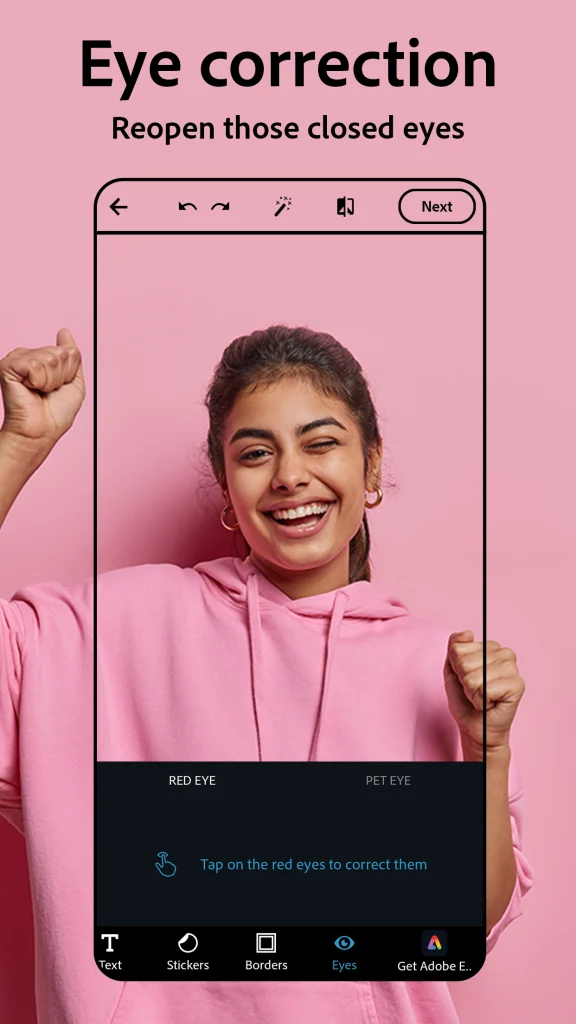
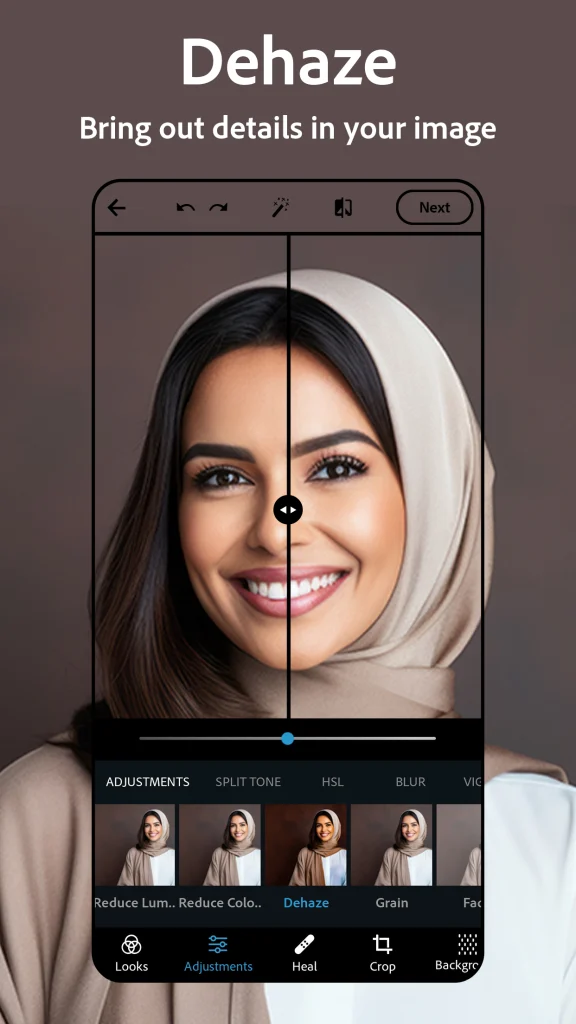
The Spot Healing Brush is particularly useful for small blemishes and imperfections. Users can also adjust brightness, vibrancy and other visual properties to improve the overall appearance of an image.
One feature worth understanding is facial retouching. Adobe states that its facial retouch feature processes data directly on the device rather than storing or processing that information through Adobe or third parties.
Work with Layers, Colours and Multiple Images
A professional-looking composition often contains several visual elements that need to be adjusted independently. This is where layers become particularly useful.
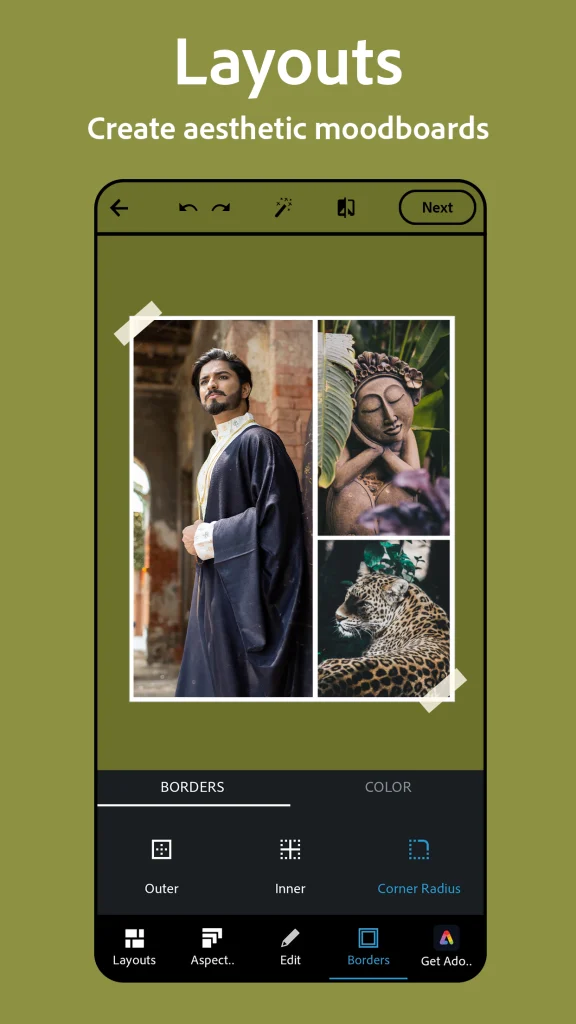
Photoshop supports combining photographs, graphics and text into a single design. Users can arrange different elements, adjust their appearance and control how they interact with one another.
Adjustment layers also make targeted colour editing possible. For example, you could change the colour of a shirt in a photograph without applying the same adjustment to the surrounding background.
Advanced Blend Modes provide additional control over transparency and visual effects. These options are useful for creating promotional artwork, album covers, digital illustrations and social media graphics.
For beginners, understanding layers may take some practice. However, learning how to separate image elements can make future editing projects easier to manage.
Who Should Consider Using Photoshop with AI Assistant?
The app can suit different types of users depending on their editing requirements.
- Beginners: People learning photo editing can use guided explanations and suggestions to understand different tools.
- Social media creators: Users can prepare promotional images, creative posts and visual content.
- Photographers: Background replacement, retouching and object removal can help refine photographs.
- Small business owners: Product images and marketing graphics can be adjusted without immediately relying on a separate desktop workflow.
- Digital artists: Layers, blending options and generative features provide additional creative possibilities.
However, mobile editing is not a complete replacement for every desktop workflow. Professionals working with large projects, highly detailed masking or specialised production requirements may still prefer Photoshop on a computer. You can also download PicsArt Mod APK.
A Few Things to Check Before Installing
Photoshop Mobile APK is available through Adobe’s mobile app offering, with its official Android listing available on Google Play. Before installing, check device compatibility, available storage and the latest subscription information.
Also consider the type of images you plan to edit. AI-generated content can occasionally introduce unexpected details, so important commercial photographs should receive a careful manual review. Export formats and quality settings matter too, particularly when preparing images for printing or professional delivery.
For anyone interested in combining traditional photo editing with AI-powered assistance, Photoshop with AI Assistant offers a practical mobile creative environment. Its biggest advantage is the ability to move between prompt-based suggestions and hands-on editing, giving users more ways to shape an image while keeping creative decisions in their own hands.